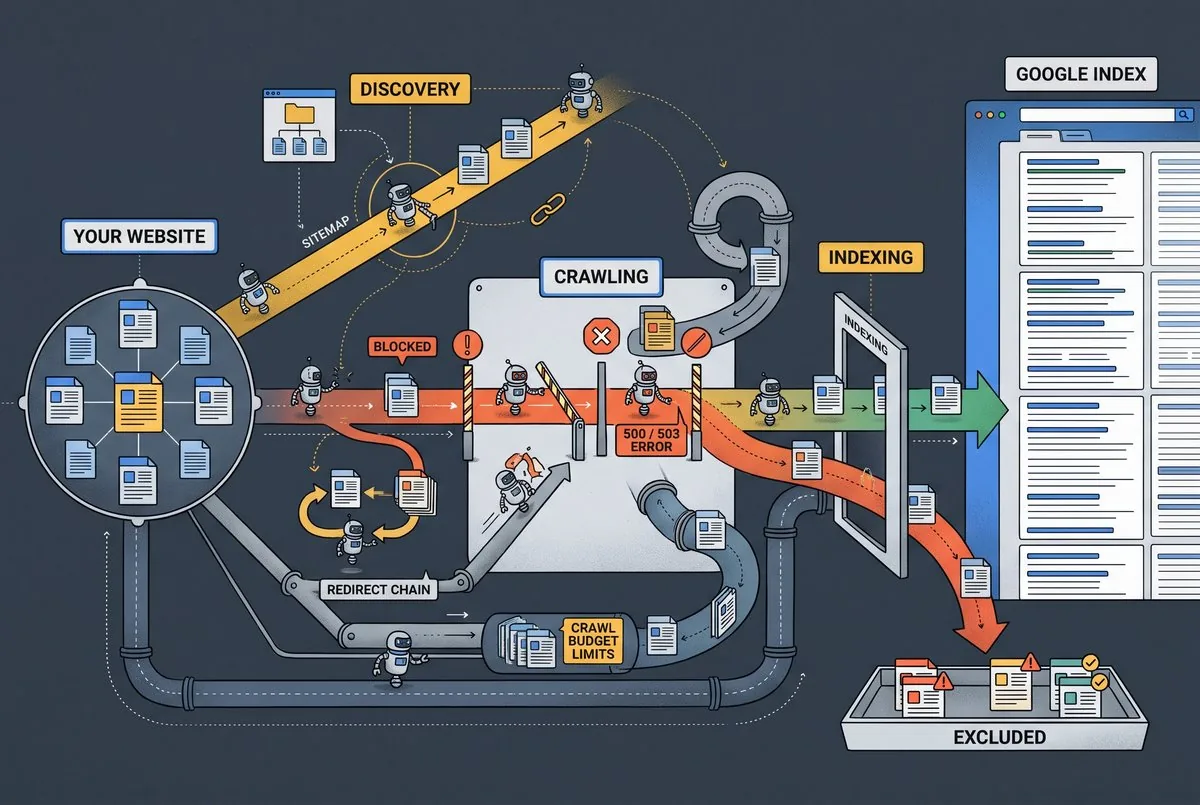
If you’ve ever logged into Search Console and spotted a 5xx server error, you’ve seen Google flag something going wrong on your end. It’s basically a sign your server couldn’t handle a request Google sent it. And you’ll see it come up for one of a few reasons, mainly a hosting problem or a fault in your site’s code.
At Click2Rank, we’ve worked through dozens of these errors across client sites. From that, we’ve picked up patterns most site owners miss. Here, we’ll walk through the common causes, the status codes behind them, and how to fix each one for good.
Once you know what’s triggering the error, you’ll get a clear path to fixing it. Plus, your site’s crawl rate bounces back once Google stops hitting dead ends. Let’s get started.
What Is a Server Error 5xx in Google Search Console?
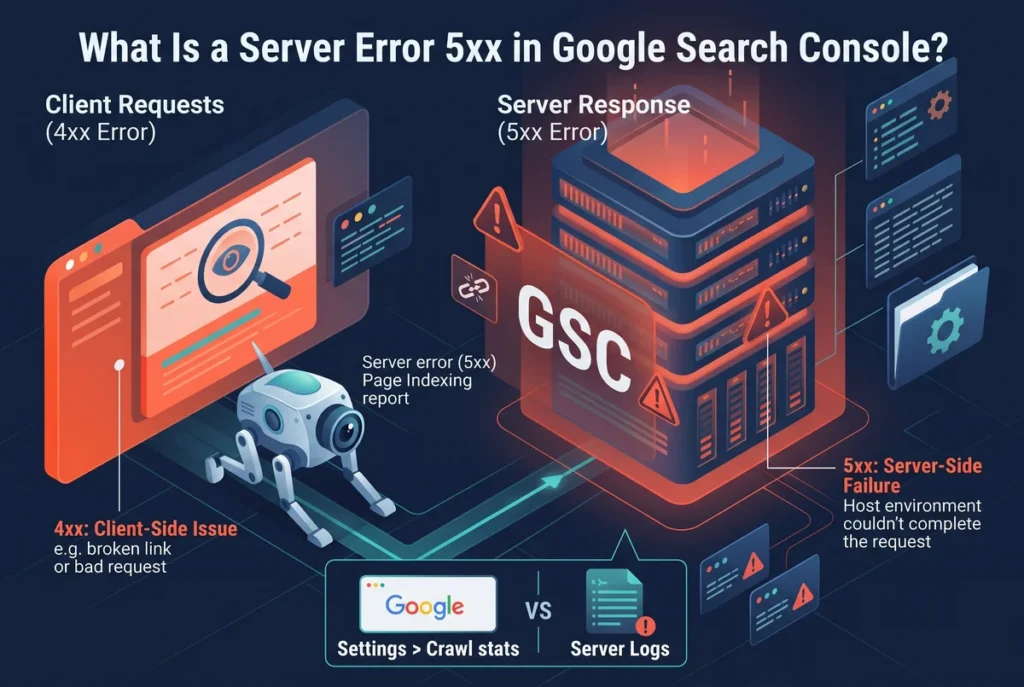
A 5xx server error means your server couldn’t complete a request Google sent to it. Simply put, it’s a generic error indicating something broke on the server’s end, not yours as the visitor. Google groups these under the 5xx range because the problem sits with the hosting environment instead of the page itself.
You’ll find these flagged in the Page Indexing report inside Search Console. You’ll find these flagged in the Page Indexing report under “Server error (5xx).”
The report shows example URLs but not the exact status code for each. To find the code, check your server logs or open Settings > Crawl stats, where the response breakdown shows specific codes with sample URLs. Note that Crawl stats shows examples, not a full list.
It’s worth separating this from client errors, which fall under the 4xx range and point to a problem with the request itself. A server error 5xx points the finger the other way, since the server received the request fine but failed to respond properly.
Common HTTP Status Code Issues Behind Server Error 5xx
Not every 5xx error looks the same, and the code points to the cause. Four codes appear most often: 500, 502, 503, and 504. Each one points to a different failure point, so knowing which one you’re dealing with saves you time.
500 Internal Server Error Explained
A 500 error is a catch-all. It means something broke, but the server can’t pin down exactly what caused it. So you’ll need to dig a bit to find the real source.
Common causes include corrupted files, plugin conflicts on platforms like WordPress, or misconfigured .htaccess rules. Any of these can stop a page from loading correctly, even if the request itself was valid.
This code often means you’ll need to check server-side logs to find the real cause. Without that step, you’re mostly guessing at what went wrong.
502 Bad Gateway and What Causes It
A 502 error happens when one server, acting as a gateway, gets an invalid response from another server it’s relying on. This usually points to a breakdown between your web server and an upstream server, like a proxy or load balancer.
The situation can arise because of backend server downtime, DNS issues, or an overloaded reverse proxy struggling to keep up. We’ve seen this trip up sites running behind a CDN layer that’s misconfigured.
A badly set up CDN can also produce a 502 response when Googlebot tries to reach your pages. That’s worth ruling out early if the error keeps showing up.
503 and 504: Overload and Timeout Errors
A 503 error means the service is unavailable, often during scheduled maintenance or a sudden traffic spike. The server is telling Google it can’t handle the request right now, not that it never will.
A 504 error is different. It’s a gateway timeout, meaning the server took too long to send back a timely response. You’ll see it happen this way: a backend process runs longer than expected, and the connection times out before it finishes.
Both usually clear up once server load drops or the maintenance window ends.
How Server Error 5xx Problems Affect Crawling and Indexing
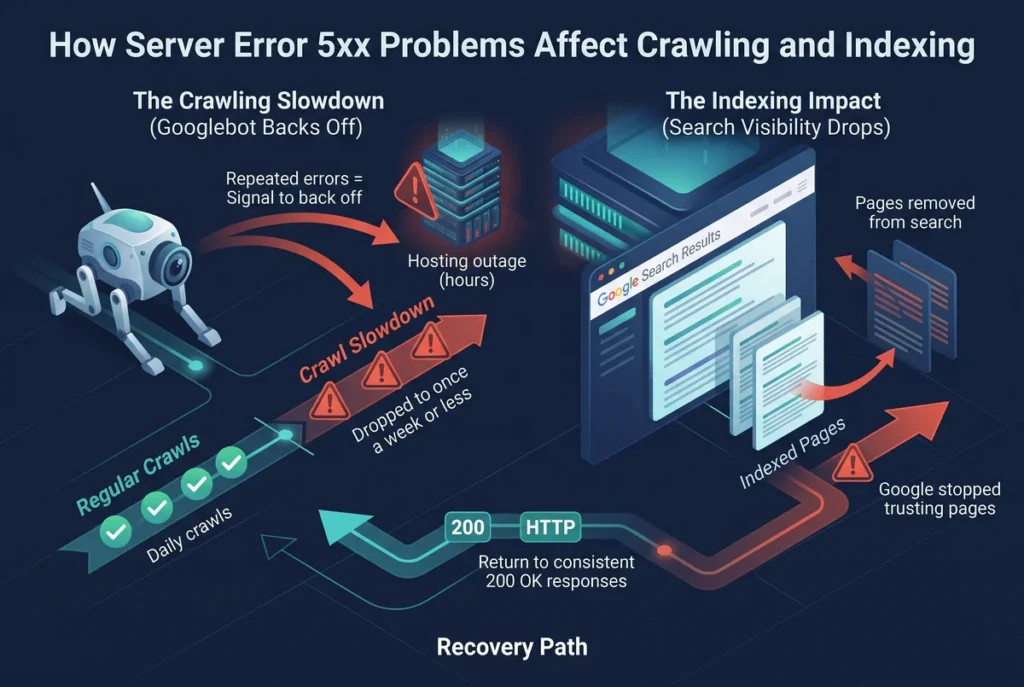
A server error 5xx slows down how often Google crawls and indexes your pages. Google’s crawler treats repeated server errors as a signal to back off, since it doesn’t want to keep hitting a site that’s struggling to respond. So instead of visiting daily, Googlebot might drop to once a week or less.
A hosting outage lasting several hours is usually enough to trigger this slowdown. Google may also pull previously indexed pages from search results if the errors keep piling up. That doesn’t mean the page is gone for good, because it just means Google stopped trusting it enough to keep showing it.
Recovery usually kicks in once your server starts returning consistent 200 responses again. Fixing errors fast also helps protect how much visitors trust your site, as broken pages tend to drive people away just as fast as they drive Google away.
What Causes Server Error 5xx on Your Website?
It’s worth knowing what’s breaking behind the scenes before you try any fix. A wrong move here can waste hours you don’t have. Server errors in the 5xx range have several possible causes, and each requires a different approach.
- Hosting Failures: An outage, an expired resource, or a misconfigured server environment can all stop requests from going through. Even a short lapse on your host’s end shows up as a 5xx in Search Console.
- Overloaded Servers Struggle Too: A sudden spike in high traffic can overwhelm a site that doesn’t have enough resources to handle the extra load. This shows up most during a sale, a viral post, or a press mention.
- Broken Code Causes Its Own Mess: Application errors like broken code, a failed database connection, or a faulty plugin can all stop a page from rendering. The server itself might be running fine while this happens.
- Slow Processes Lead to Timeouts: A database query or backend process that drags on too long leaves the request hanging until it gets cut off. In that case, Googlebot gives up waiting after a set limit.
- Maintenance Windows Are the Exception: Temporary maintenance is the one cause that’s planned on purpose. Scheduled updates often return a 503 response while the site sits offline for a bit.
Watch for which of these five keeps showing up on your site, because that pattern points straight to the real problem.
Hosting Failures and Server Overload: The Most Common Triggers
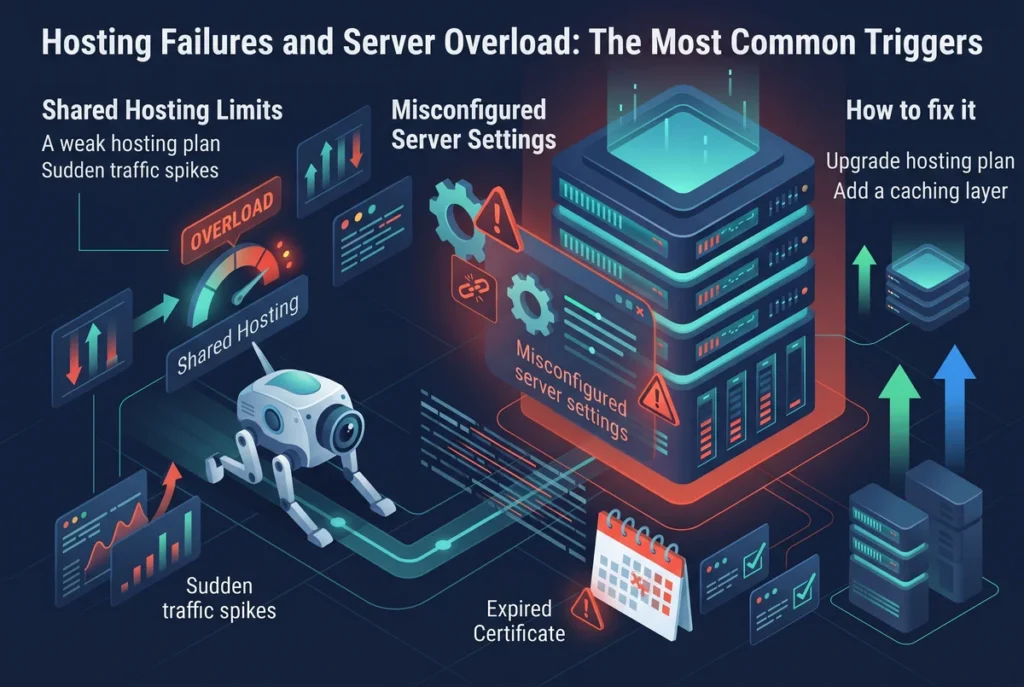
The fastest way to cut down on a server error 5xx is fixing your hosting setup first. Shared hosting often lacks the resources to handle a sudden rise in visitors, and that leaves your site exposed the moment traffic picks up unexpectedly. A weak hosting plan shows its limits exactly when traffic spikes, and that’s rarely a coincidence.
From what we’ve seen across client sites, misconfigured server settings cause just as many 5xx errors as actual overload does. Something many people overlook until it’s too late is checking certificate expiry dates on a regular schedule. But a simple calendar reminder saves a lot of headaches down the track.
On that note, upgrading your hosting plan or adding a caching layer cuts down on overload-related errors fast. It also gives your site more breathing room during busy periods without needing constant manual support from your hosting provider.
How to Check Server Logs for Error 5xx Clues
Your server logs hold the exact clue that points to what went wrong. Here’s what’s interesting: most site owners skip this step and jump straight to guessing, which wastes time they could’ve spent fixing the actual issue.
The checks below help you trace the error back to its source, and each one builds on the last:
- Access Your Hosting Logs First: Log into your hosting control panel and locate the error log section, usually found under diagnostics or server tools. If your host offers direct server access, connecting through that route often shows more detail than the control panel view.
- Filter Logs by the Right Date: Match the timestamp in your logs to when Search Console first flagged the error. Narrowing the window this way saves you from sifting through days of unrelated entries.
- Look for Repeated Entries: Scan for a pattern pointing to the same script, plugin, or database call showing up again and again. A repeated entry usually means that’s your root cause, not just a one-off glitch you can ignore.
Once a pattern shows up in the logs, you’ve got a solid lead to test against the live error next.
Reproducing a Server Error to Confirm the Problem
Now that you’ve checked the logs, it’s time to confirm the error yourself. This is where most people go wrong. They assume the fix worked without actually testing it, then get surprised when Search Console flags the same URL a week later.
Tools like cURL or your browser’s DevTools let you resend the client’s request and watch exactly how the server responds. Testing from more than one location also helps. Because a regional outage or a routing issue might only show up from certain spots, not everywhere at once.
Reproducing the error this way confirms the problem is current. If the server responds with a clean 200 instead of a 5xx, you’ve validated the fix. If not, you’ll know to keep digging before moving on.
Identifying Affected URLs in Google Search Console
The Page Indexing report shows you exactly which URLs got hit by a server error 5xx. Open the report, filter by the error type, and you’ll see every affected URL listed with its last crawl date attached.
Export the list and match it against traffic data from Search Console or your analytics. The pages with the most visits lose the most visitors while the error lasts, so fix those first
Grouping URLs by pattern often reveals whether one broken script affects dozens of pages at once. For example, if every affected URL shares the same template or plugin, that’s usually your root cause, not a dozen separate problems.
Here’s a quick breakdown of what to expect at each status level:
| Status Code | Typical Cause | First Thing to Check |
| 500 | Corrupted files, plugin conflicts, or broken code | Your server error log for the most recent entry |
| 502 | Upstream server failure or a bad response from a proxy or CDN | Whether your backend or application server is running |
| 503 | Overload or planned maintenance | Hosting resource usage and whether maintenance mode is on |
| 504 | Backend timeout | Slow scripts or database queries |
With your list sorted this way, the fix comes next, starting with the parts that are broken.
Server Error 5xx: Your Path to a Clean Fix
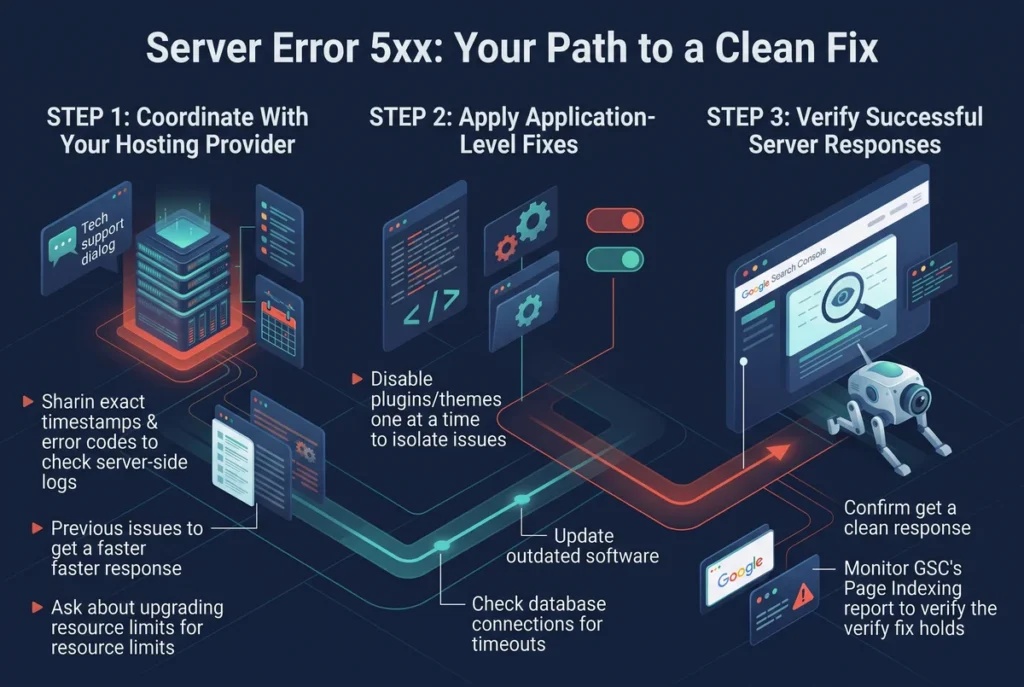
Fixing a server error 5xx the right way means it won’t keep coming back. The process breaks down into three parts: getting your hosting provider involved, fixing what’s broken in your code, and checking that everything actually works.
Coordinate With Your Hosting Provider
Sharing exact timestamps and error codes with support speeds up troubleshooting a lot. Your provider can check server-side logs you’re unable to see through your own dashboard, which often reveals issues invisible from your end.
In our experience working with hosting teams, mentioning that this has happened previously gets a faster response than reporting it as a one-off. If overload is a repeated issue, ask directly about upgrading your resource limits instead of waiting for it to happen again.
Apply Application-Level Fixes
Disabling plugins or themes one at a time helps isolate which piece of code is causing the problem. This takes longer than a blanket fix, but it pinpoints the actual source instead of guessing.
Updating outdated software often resolves errors tied to compatibility issues between your site and its hosting environment. From there, checking your database connections makes sense if timeouts keep pointing to slow queries instead of a plugin conflict.
Verify Successful Server Responses
Once you’ve made a fix, the URL Inspection tool lets you request indexing and see how Google responds. Confirm you’re getting a clean status code before calling the issue resolved.
At the end of the day, monitoring the Page Indexing report for a few days afterward confirms the fix holds. A single clean response isn’t enough proof that the problem won’t resurface under load.
Can Persistent Server Errors Hurt Your Google Search Rankings?
A single server error probably won’t hurt you, but a pattern of them will. Think about it this way: Google treats crawling like a trust exercise, and every failed request chips away at that trust bit by bit.
Ongoing errors reduce how often Google crawls your site, which slows down how fast new content gets picked up. On top of that, rankings can drop if key pages get pulled from the index entirely, especially pages that were already pulling in solid traffic before the errors started.
That said, a one-time error rarely causes lasting damage to your rankings. A short outage barely moves the needle, but a pattern does, and that’s the part worth watching closely.
If the damage is already showing up in your search results, an SEO consultation can help you figure out how much ground you’ve lost and what it takes to win it back.
Don’t Let Server Error 5xx Quietly Drain Your Traffic
Fixing a server error 5xx protects both your crawling and your indexing, so it’s not something worth putting off. The sooner you catch it, the less damage it does to your site’s standing with Google.
Monitoring Search Console regularly is a safe bet for catching new error patterns before they pile up. A quick check every week beats finding out three months later that half your site dropped out of the index.
Hope this guide gave you a clear path forward. If you’re still stuck on a server error 5xx that won’t resolve, contact us and we’ll help you track down the fix.
Frequently Asked Questions (FAQs)
Still have a few questions left? Here are quick answers to what people usually ask next.
What does “generic error” mean when server error 5xx shows up?
A generic error just means the server hit an unexpected condition it couldn’t label more specifically. It’s frustrating for users since the message gives no clue about what went wrong or how to fix it. The real cause is usually incorrect configuration or broken code hiding underneath that vague label.
Can a service unavailable message affect multiple pages at once?
Yes, a service unavailable response often hits every page on a site at the same time, not just one. This happens with server-side errors tied to the hosting layer itself, since the whole server goes down rather than a single script. That’s why a spike in affected pages usually points to hosting, not individual page bugs.
Does the HTTP protocol version matter for server error 5xx?
It can. An older HTTP protocol version sometimes struggles to handle functionality required by modern scripts or plugins, which the server encounters mid-request. Upgrading your server’s protocol support often resolves compatibility issues you wouldn’t catch by looking at the code alone.
Will search engines besides Google react to a server error 5xx the same way?
Most search engines treat a 5xx response the same way Google does, since it’s a standard HTTP code. Your website still risks losing visibility across the board, not just in Google search results. The articles and pages hit hardest are usually the ones already ranking well before the error started.
How does crawling frequency change after fixing a server error 5xx?
Crawling frequency usually picks back up within a week or two of consistent 200 responses. Google Search Console tracks this in the Crawl Stats report, so you can watch the recovery happen in real time. Following methods like requesting indexing manually can speed up the process, though patience still matters most.