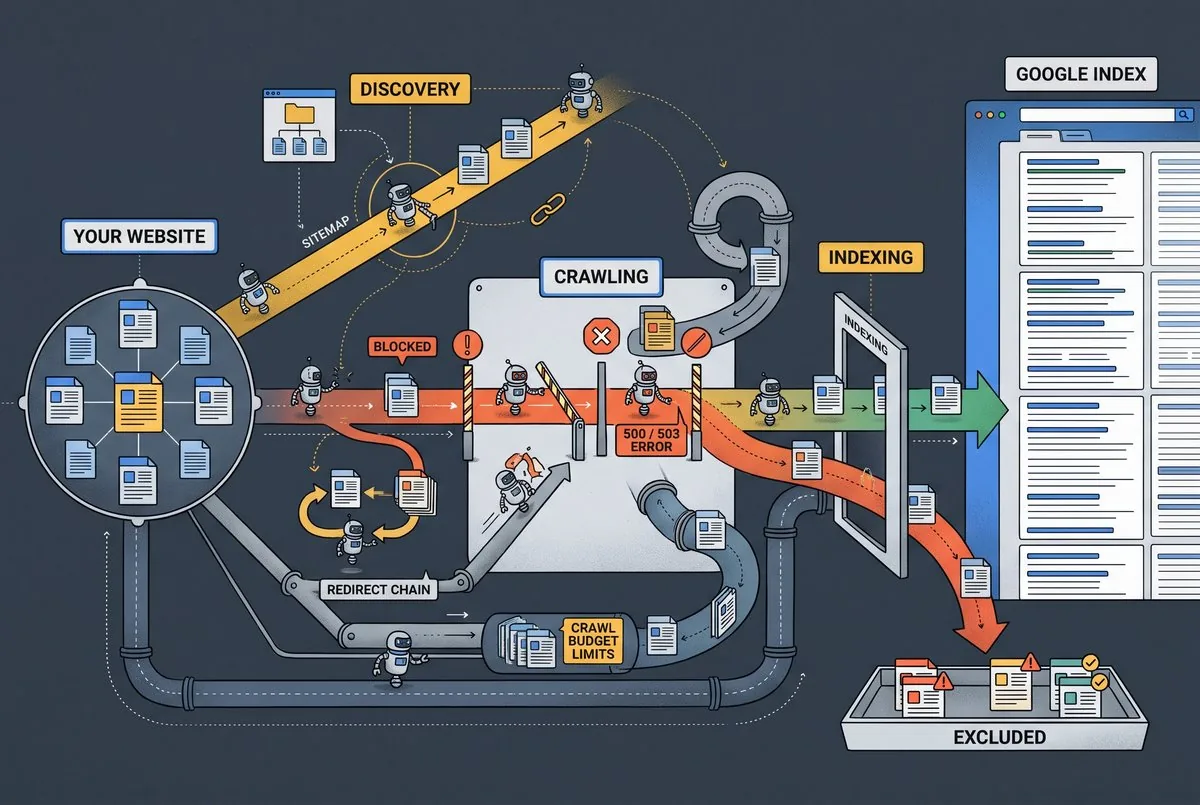
Fixing a Google Business Profile takes no heavy technical skill. Still, you might be thinking you’re not techy enough for it. If you can update a Facebook page, you’ll handle this fine.
Click2Rank walks you through five fix steps and shows you where Google support lives. When you follow them, your business profile stays accurate and visible to searchers.
Every owner hits a profile problem at some point. Over the past few years, many businesses have lost calls to a wrong phone number and never noticed. Unless you want a potential customer dialing a dead line, check your listing today.
What Are the Common Issues With a Google Business Profile?
The most common Google Business Profile problems fall into six groups:
- Visibility drops
- Ranking dips
- Suspensions
- Verification failures
- Wrong categories
- Service area errors
Most businesses trace these common issues to three causes. A recent edit, Google’s review of that edit, or a change in account access can each start one. For example, a business name with extra keywords can get an edit rejected.
Google reviews many edits before they go live, so a change can sit pending while the old details stay public. Ultimately, the damage looks different for each problem.
For instance, a suspension pulls your listing from Google Maps, while a poorly chosen category attracts users who want something else. What’s more, low visibility on search engines costs you customers who never knew you existed.
The worst part is that you might not notice until the phone goes quiet!
However, the five-step process in the next section works for all six, and each problem also gets its own short section later.
How to Fix Google Business Profile Problems in 5 Steps

You can fix most Google Business Profile problems with our proven five-step process. The best part is you’ll find the cause without guessing or breaking anything else. Keep your dashboard open in one tab and your live listing in another as you go. Let’s walk through it.
Step 1: Write Down What Changed and When
Start by writing down the date, the edit, and the person who made it, because most problems follow a recent change. Keep these in a change log, with one line per change. For example, “3/12, changed Saturday hours, Sam.”
Then, ask teammates and any agency to list their edits. Anyone with access to your account can change your profile without telling you. Add a dashboard screenshot as documentation before you touch anything.
Next, check the inbox linked to your listing, and your spam folder too. Google emails owners about edits and policy notices, so the cause may already be waiting there (it sounds tedious, but one notice can save you hours of testing).
Step 2: Confirm the Problem on Your Live Listing
Sign out of your Google account before you search your business name on Google and Google Maps. That shows what customers see, while your dashboard only shows the data you saved.
Start by checking the business address, phone number, hours, and website link against your records. Note every mismatch, as even one wrong digit sends calls to a stranger.
Fair warning, though: the listing can look different on a phone than on a computer. Check both so you don’t chase a problem that only exists on one screen. Test from the area your customers search in, since results can shift with location.
Step 3: Rule Out the Common Causes First
The most probable causes include: a recent name change, a duplicate listing, or an edit still waiting on review. Google says edit reviews usually take 10 minutes, though some edits can run up to 30 days.
Also, compare your business name with your storefront sign. Google’s guidelines expect the name to match what customers see in person. An added tagline or extra keywords can cause a rejection.
After that, search your address on Google Maps and look for two pins at one location. It’s important because duplicates split reviews between listings, which weakens both.
Step 4: Change One Setting at a Time
Now, pick one cause from Step 3 and edit just that field, like your business hours. Leave the rest alone until Google processes it, because bulk edits blur cause and effect.
For instance, if you change the category, photos, and description at once, you’ll have no idea which edit cut your calls. A change log you update after every edit fixes that, because each entry shows what changed before the drop.
Wait until the status reads Accepted, then move on to the next edit. That way, if a fix backfires, you’ll know which edit to undo.
Step 5: Recheck Your Profile After Three Days
Here we go with the last step. Give it three days, and compare your live listing with the screenshots from Step 1. Three days is our own guideline, so adjust it if the status still reads Pending.
Keep an eye on your dashboard during that stretch for a change in status. A move from Pending to Accepted means Google approved the edit.
If the problem’s gone, write down which edit fixed it so you’ll have that answer next time. But if nothing improves, you’ll want to use the status and access checks later in this guide.
Google Business Profile Terms You’ll See Along the Way
Ever seen “primary category” or “service area business” and wondered what they mean? Google’s dashboard uses six terms again and again, so we’ve defined each in plain words:
| Term | What It Means | Quick Example |
| Suspension | Google restricts or hides your listing from Search and Google Maps after a policy violation. | A business name stuffed with extra keywords. |
| Verification | The step where Google confirms you own or manage the business. | A shop owner confirming the storefront’s location. |
| Primary Category | The main business type Google uses to describe your listing. | Plumber or Italian restaurant. |
| Service Area Business | A business that travels to serve customers instead of hosting them at a storefront. | A plumber who works at clients’ homes. |
| Business Profile | The free listing that shows your details across Google. | The card with your hours, address, and reviews. |
| Primary Owner | The one account with full control, including ownership transfers. | The account that first created the listing. |
Each term ties to a problem you’ll meet later. A suspension or a failed verification can hide your listing. At the same time, a mismatched primary category or service area setting draws the wrong searches. Ownership causes trouble as well, since an outdated primary owner can lock you out of edits.
Make sense so far? Good, because the next section puts these terms to work on your own listing.
Can You Tell If Your Business Profile Has a Problem?
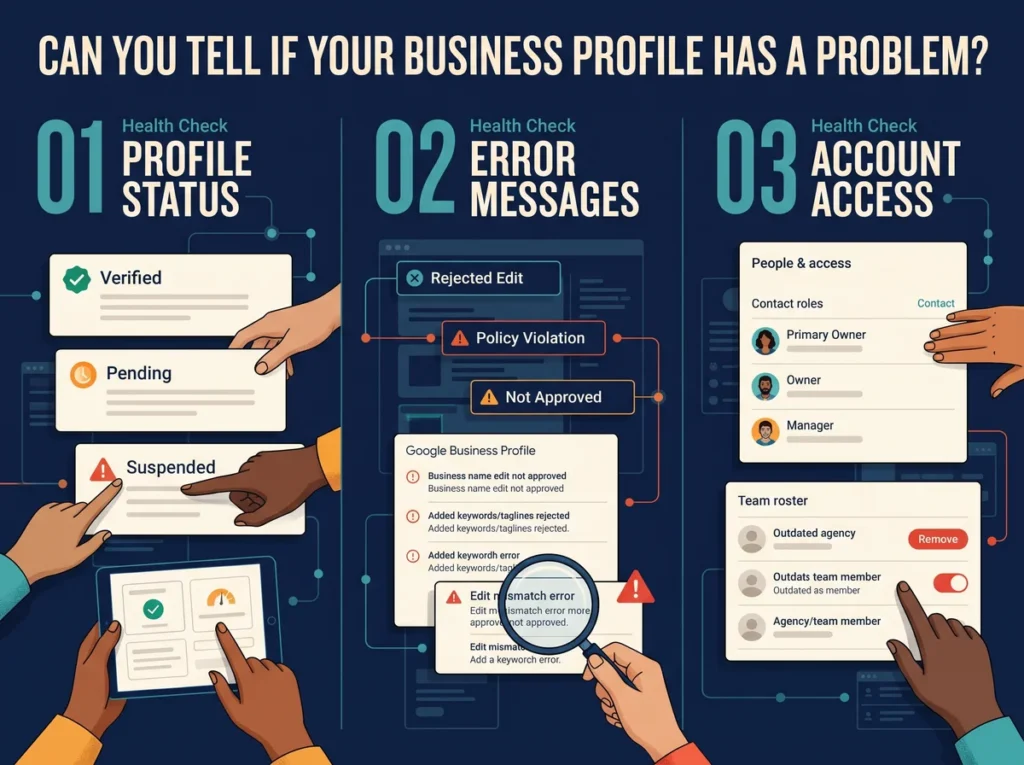
Yes, you can spot most problems by checking three things: profile status, error messages, and account access. Each one shows a different kind of trouble, and none needs special tools. We’ll cover them in that order.
Profile Status: Verified, Pending, or Suspended?
Your profile status falls into three groups, and each one changes what customers see. To get a clear idea, search your business name on Google while signed in, then check the profile controls.
Verified means Google has confirmed your business. If it’s unverified, you still need to verify ownership, and your control stays limited. A pending status leaves your listing up in the air while Google reviews it. And a suspended profile is hidden or restricted, so customers may not see it at all.
Error Messages: What They’re Telling You
Error messages usually point to a rejected edit, a policy violation notice, or a verification error. Copy the exact wording before you do anything else, because small wording differences signal different causes.
One example is a business name edit that adds extra keywords. Google marks it as Not approved (even careful owners get rejected edits). Your dashboard shows which edit failed, and that field is your first fix.
Account Access: Who Can Edit Your Listing?
Your listing runs on a role system: primary owner, owner, and manager. Only one primary owner exists, and only that account can transfer ownership. Owners can add and remove people, while managers can edit info and reply to reviews.
The fix is simple: go to Business Profile settings, open People and access. Then, remove anyone who no longer works with you.
After years of working with business owners, we’ve seen an old agency email hold primary ownership and lock the company out of edits.
Visibility Drops and Ranking Dips: Why Customers Can’t Find Your Google Business
Did your calls drop last month even though nothing on your listing looks different? A visibility drop means fewer customers see your profile in Search or Google Maps at all. With a ranking dip, your listing still appears but sits lower than it used to.
Now it gets tricky, because the cause often sits outside your profile. Google ranks local results by relevance, distance, and prominence.
Typical culprits include:
- A recent edit
- An industry-wide seasonal swing
- A suspended listing
- A competitor with a wave of fresh reviews
Well, your performance data gives you a first clue, and website analytics can back it up. Compare calls, direction requests, and website clicks from the last 30 days with the 30 before. Then check the same period last year, since a seasonal dip shows up there too.
Patterns help here: a sudden cliff frequently follows an edit or a suspension, while a slow slide tends to track competition. If you’re keen to know detailed Maps ranking recovery and individual fixes, it’s already live in our local search guide.
For now, your job is to narrow down the cause. Suspensions deserve a closer look, so they’re up next.
Suspensions and Verification Failures: What Went Wrong?
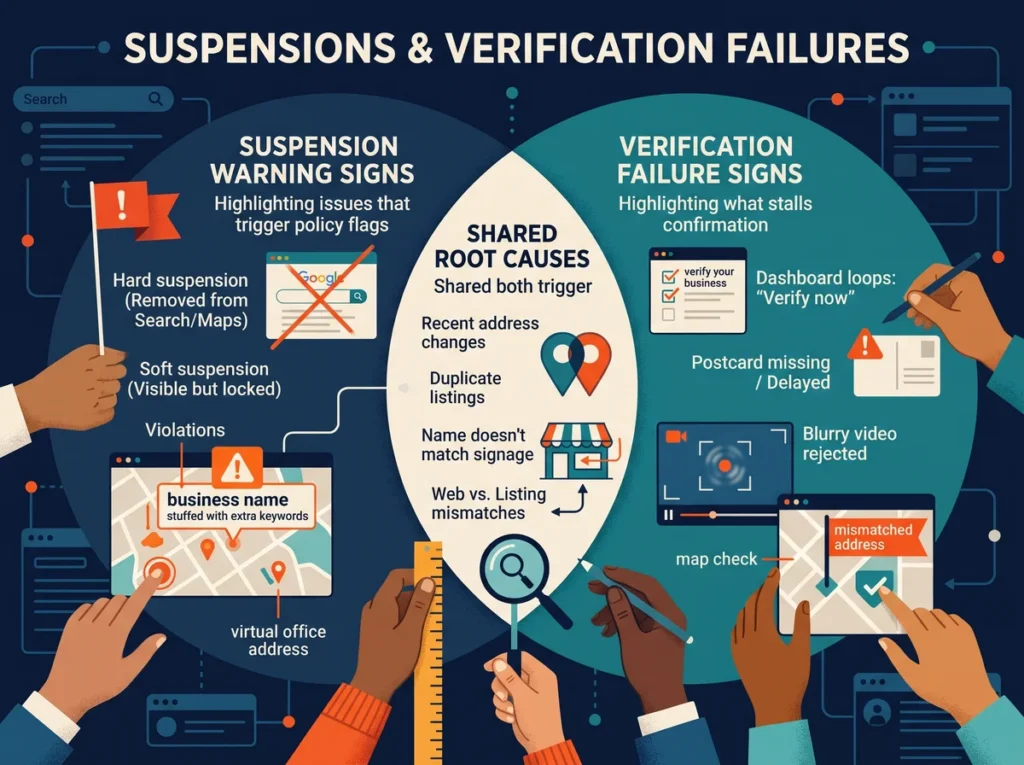
A suspension is a policy action against your listing, and a verification failure means Google couldn’t confirm your business. A suspension notice feels alarming, even when you’ve done nothing wrong.
The points below show how each problem looks and where the two overlap:
- Suspension Warning Signs: A hard suspension removes your listing from Search and Maps, while a soft one leaves it visible but locked for edits. Violations behind either type include a business name stuffed with keywords or a virtual office as your address.
- Verification Failure Signs: Google couldn’t confirm the business exists at its address, so your dashboard keeps asking you to verify. A blurry video, a missing postcard, or a mismatched business address can stall the check. Until it clears, your dashboard shows limited features.
- Shared Root Causes: Inconsistent details cause both problems. A recent address change, a duplicate listing, or a name that differs from your permanent signage can set off a review. Even a small mismatch with your website can raise a flag.
Appeals and verification each follow a detailed process of their own, so this overview stops at the warning signs. Google doesn’t always say which rule you broke, so the change log from earlier is your best clue.
What if Your Categories or Service Area Business Settings Are Off?
If your categories or service area settings are off, you’ll show up for the wrong searches and miss the right ones. Catching the mistake early keeps those calls from going to a competitor.
Your primary category is the main label Google uses to describe your business. You can usually spot a wrong one off the bat. In practice, a bakery shows up for “florist” searches, while a plumber goes missing from “emergency plumber” results.
If you run a service area business, watch for a home address showing on your listing. Another sign is a service area list that skips towns where you serve customers, or calls from outside your area. Say a Seattle landscaper keeps getting calls from Spokane.
Your listed services offer a second hint. If they include work you don’t do, or skip what clients usually call about, the category is the likely culprit. So compare both against live search results, then decide which setting looks off.
Quick Troubleshooting Checklist: Business Hours, Categories, and Other Basics
Now that you know the common problems, use this checklist once a month to catch them early. Each row covers what to check, where to find it, and what a problem looks like.
| Item | What to Check | Where to Find It | What a Problem Looks Like |
| Business hours | Regular and holiday hours match your door sign | Dashboard, then the live listing | Open on Sunday online, closed in person |
| Name | Matches your storefront sign | Dashboard | A tagline or city added to the name |
| Address | The pin sits on your storefront | Dashboard and Google Maps | A pin that lands a block away |
| Phone | The number rings your front desk | Dashboard | An old number or a dead line |
| Website link | The link opens the right page | Dashboard, then a click-through from the listing | A 404 error or an outdated domain |
| Categories | The primary label names your main service | Dashboard | A label for a side service |
Run through all six rows once a month. Wrong hours create conversion traps, since customers visit your store, find a locked door, and head to a competitor. Finally, check holiday hours before any promotions start (not the most exciting chore, admittedly).
Actionable Tip: Save this table next to your change log, so each pass follows the same order.
When Should You Contact Google Support? Business Profile and Google Ads Help Options
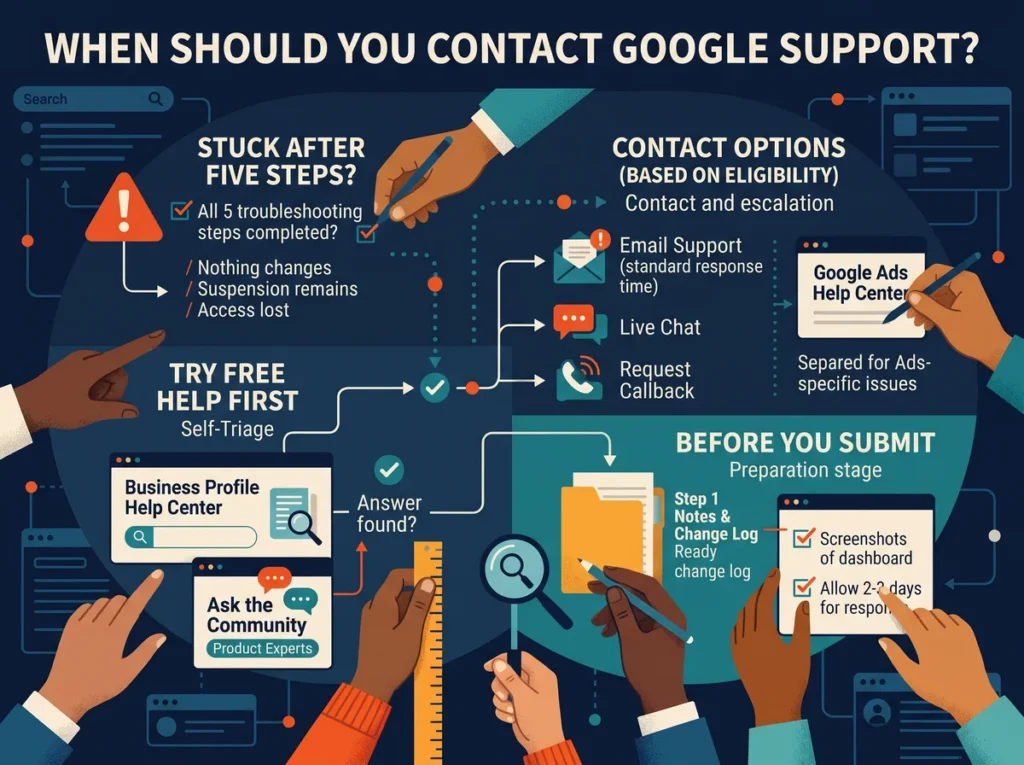
Stuck after all five steps? Google support can fix what you can’t. Simply put, reach out when nothing changes, a suspension notice appears, or access is gone. Each of those needs a decision from Google’s side.
Start in the Business Profile Help Center, which is free and searchable. If it doesn’t help, choose Contact Us, and Google will offer email, chat, or a callback, depending on your issue and account.
Not every option shows for every problem, so the list you see may differ from a friend’s. The Business Profile Community lets you ask other owners and Google Product Experts for advice.
Google Ads has its own Help Center and contact options. You can use those for problems with your ads. Have your Step 1 notes and screenshots ready, so you can show what changed and when.
Remember, support can take a couple of days to respond, and if nothing arrives, you’ll want to send a follow-up.
Need a Hand With Your Profile? Let’s Sort It Out Together
The best part about a healthy Google Business Profile is steady calls from customers who find the correct hours and address. Check your status, run the five steps, and contact Google when you’re stuck. That’s all.
Honestly, a profile problem looks scary at first, yet each one has a cause you can track down. Your notes and the monthly checklist shorten that hunt.
If a suspension, a ranking dip, or a locked account has you stuck, talk to our experts. Click2Rank offers SEO consulting and audit services for businesses across the United States.
Quick Answers About Your Google Business Profile
Owners often ask five more things once the basics are sorted, so we’ve answered them below.
Is a Google Business Profile Free?
Yes, you can create and manage a Google Business Profile for free. You only pay if you also run Google Ads, which is a separate service with its own billing.
Can You Connect Your Business Profile to Google Ads?
You can link the two, so your ads show your address, a map, and the distance to your business. Profile edits can take 24 to 48 hours to reach your ads. Location assets can track store visits that start with a Google Ads click.
Can You Add a Video to Your Business Profile?
A video can run up to 30 seconds and 75 MB, as long as it’s 720p or higher. Show your storefront, products, or services. Plus, keep the video relevant to your business, because Google reviews every upload against its content policies.
Can One Account Manage Several Locations?
One account can manage several locations, and you don’t need a new account for each one. Businesses with ten or more locations can also upload photos in bulk through a spreadsheet.
Can Customers Suggest Changes to Your Business Profile?
Customers and other users can suggest edits to details like hours, and Google can also update your listing from other sources. So, check your business profile for Google updates and suggested changes to catch a wrong detail early.