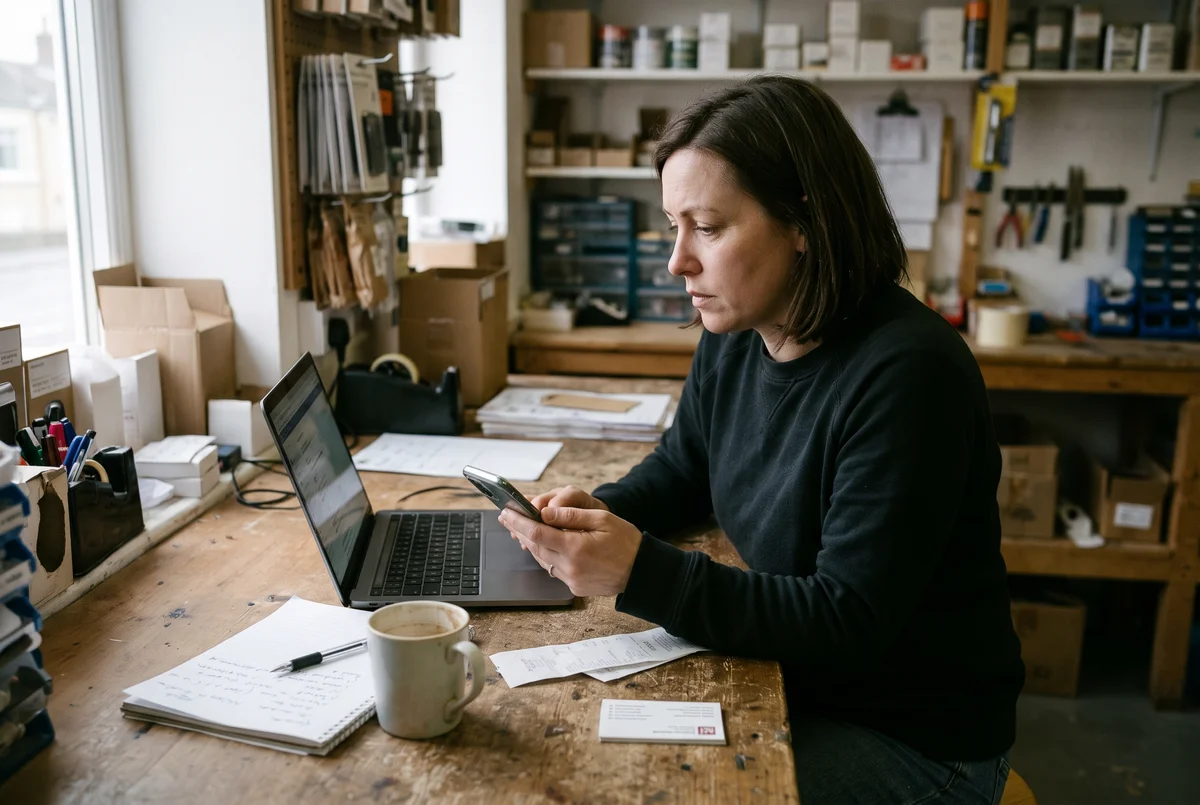
Google Business Profile verification is a required step that can stall without warning. The verification process might end in a failed attempt or a request stuck on pending. In the worst case, Google may offer no method at all.
As a website owner, your first job is to match your name, address, and phone to official records. Then, you should gather proof that backs them up. Here, Click2Rank’s skilled digital marketers will share causes, fixes, and why Google alone decides which verification method you see.
Google Business Profile Verification: What It Is and Why Google Requires It
Google Business Profile verification is a proof-of-ownership check that confirms you operate at your listed physical location. Until you pass the check, Google won’t let you edit your listing or interact with potential customers.
Google asks owners to verify because the step stops impostors from posing as you. Verification also keeps your business address and other details accurate for searchers. What’s more, a verified profile lets you post updates and reply to reviews from one account.
Now, which verification method you see depends on your business type, public information, and region. Google picks these options automatically, and you can’t change them.
The methods Google may offer include phone, text, email, and video. Postcard verification is also an option, but it might not be available to every business. That’s why different verification methods appear for similar owners, and some may need to verify with more than one.
Just a heads up, though. Google may ask a verified business to verify again after info changes.
Google Business Verification Not Working? 5 Common Causes
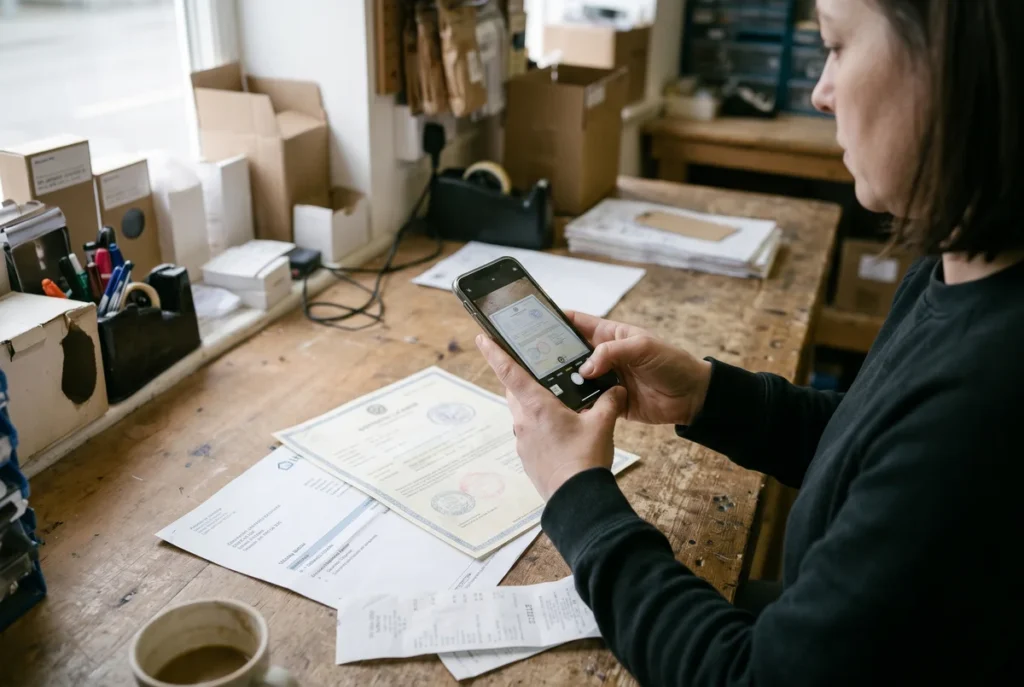
Five problems show up behind most failed verification requests: mismatched details, weak proof, flawed video, upload errors, and missing methods. One missing suite number can sink a request you submitted with otherwise clean details. Rejections feel random, but small mismatches are often holding your site back, so scan the causes below.
1. Mismatched Business Name, Physical Address, or Phone Number
Reviewers expect your business name and business address to match your profile. Gaps in your details can sink a request. For example, “St.” versus “Street” can look like a mismatch.
Still not clear? Picture a sign reading “Joe’s Plumbing” over a profile named “Joe’s Plumbing & Heating LLC.” Your phone number and website should agree too, so use the same address and business name everywhere.
2. Proof That Doesn’t Show Your Business Exists
Clear proof gives Google a solid reason to approve your request on the first review. Official documents like a business license or utility bills help, but only when they show your business name and address together.
A personal bill that lists your home address won’t back up a storefront listing, however. And blurry or cropped documents can fall short of Google’s guidelines, even when the details are right.
Step 2 below lists the specific document types Google accepts. For now, check that whatever you have shows your business name and address together on the same page.
3. Video Recordings That Miss Google’s Requirements
Filmed your storefront and still got rejected? Video verification asks for three proofs: your location, your business operations, and proof that you manage the place.
A clip of just the front door, with no signage, equipment, or employee-only areas, leaves reviewers guessing. Photos can’t replace the recording, and Google shows its requirements before you start.
4. GBP Verification Upload Errors on Your Device
Even when your video meets every requirement, the upload itself can still stall or fail. A dropped connection can cut the video off halfway (indoor spots often have patchy signal).
Signal isn’t the only culprit, since low phone storage or an outdated app may also block the send. Google’s prompt lets you delete the video and upload a new one, so a failed upload isn’t the end.
5. A Verification Method Google Won’t Offer You
Imagine opening your profile and finding no method to pick. Google ties some options to its support hours. That said, the list can look empty.
If your account shows no method, retry the verification process from the Get verified button. Then check the screen for other methods and try a second one if it’s listed.
Methods can be unavailable if your business category is under review, if Google’s verification team is at capacity, or if your profile was recently created. Wait 24 to 48 hours and check again, since methods sometimes appear after Google processes new profile data. If no methods appear after a week, contact support with your business name, address, and a screenshot of the empty verification screen.
The next section shows where to check your status.
How Can You Check Your Business Profile Status on Google Maps?
Sign in to the Google account that manages your profile, then open it to read the status. Curious what each label means? These three steps show your status on Google Maps and Search:
- Find Your Profile: Search your business name and city on Google Search or Google Maps while signed in. In the Maps app, tap Business at the bottom right.
- Read the Prompt: A Get verified button means you still need to verify. Until you do, you can’t edit your listing or reply to reviews. If the button returns after you submit, Google couldn’t fully verify you, so try again.
- Note the Date: Google says verification can take up to five business days, and a confirmation email arrives once you’re verified. Note the date you submitted, so you can tell when a wait runs long.
Quick tip: screenshot the status screen before you change anything. If verification issues continue, support sees the same screen you do.
Who Decides? Why Verification Methods Differ by Business
Google decides, and no setting lets you override it. Annoying as it sounds, you don’t get a vote. In fact, two shops on one street can see different verification methods, such as a text code or a video.
Most owners meet one of these four methods, though your screen may list only some:
| Method | How It Works | Typical Wait |
| Phone or Text | Google sends a code to your business phone. | Minutes |
| Email Verification | Google emails instructions to the address on screen. | Minutes |
| Postcard Verification | Google mails a code to your listed address. It isn’t offered to every business. | About five business days |
| Video | You record a clip or join a live call. | Up to five business days |
Quick Note: If your postcard hasn’t arrived after 14 days, request a new one through your profile. Don’t request a second code before the first has had time to arrive, as multiple active codes can invalidate each other. The code on the postcard expires after 30 days.
Each method asks for something different. For instance, phone needs a line a person answers, since automated phone menus can’t take the code. On the flip side, postcard needs a listed address where mail reaches you.
Timing varies as well. Phone codes and emails arrive in minutes, while postcard verification and video reviews take days. If a quick option appears, take it first. Video also carries the most detailed rules, so the next section covers them.
What If Google Asks for a Video? Business Verification Requirements
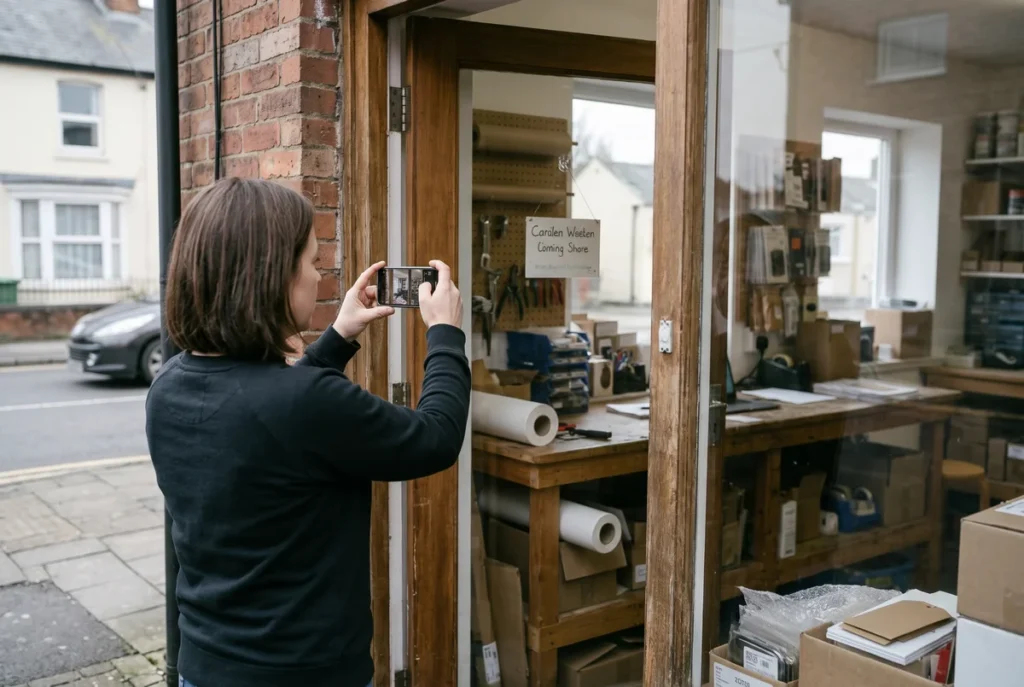
If Google asks for a video, you’ll record one continuous clip that follows Google’s guidelines. Let’s break down what video verification needs you to show.
- Show Your Physical Location: Start on the street, then pan to your signage so reviewers can match the address. If you share a space, film the building directories that list your suite. Steady shots keep the lettering readable.
- Film Your Tools and Products: Equipment, stock, and tools you use to serve customers all count as proof you operate there. A salon could film its chairs, while a cafe could film its espresso bar. Branded materials work when your signage is minimal.
- Prove You Manage It: Proof of management is something only staff can show. Walk through employee-only areas like a kitchen or storage room, or run your point-of-sale system. Mobile businesses can unlock a branded van or perform a service instead.
A rejected clip comes with reasons from Google, so you’ll know which proof was missing. From there, you can record a new one, and the next section covers retry timing.
Can You Retry After a Failed or Pending Verification?
Yes, you can usually retry, but fix the cause of the first attempt before you do. For a failed video, Google shares its reasons, so add the proof it lists as missing. If a second attempt still fails, switch to another method on your screen. For example, a salon whose video keeps failing might see a phone or text option instead.
A pending status flips the advice since Google’s manual review can take up to five business days. In that case, we suggest leaving it alone. This way, you avoid a second verification request that won’t speed up the answer.
In the meantime, hold off on editing your business name or address. A mismatch can derail the review. Remember that patience pays off here, as a verified profile supports organic growth.
Pending, Failed, or Unavailable: Spotting Verification Issues

A correct read of your status saves you from resubmitting when waiting is the better move. Match your screen to one of these three labels, then follow its row:
| Status | What It Signals | Next Move |
| Pending | Your request sits in manual review. | Wait for the result before submitting again. |
| Failed | Google couldn’t confirm your proof or details, and a video shows as not successful. | Read the reasons, fix them, then retry. |
| Unavailable | Your screen lists no verification method right now. | Recheck your details, then ask support. |
Say you submit a video on Monday and see Pending on Tuesday. That’s normal, so wait out the review before changing anything.
Don’t panic if you land on Unavailable. It only means Google lists no method for you right now. Verification issues can also shift from pending to failed once the review ends.
Fixing Google Business Profile Verification Problems, Step by Step
Work through all the steps in order, and three payoffs follow. You’ll make fewer wasted attempts, because each fix lands before the next try. Clearer feedback arrives when Google rejects a request, and less retyping comes from consistent details.
Step 1: Match Your Details to Official Records
Matching every detail upfront gives Google nothing to flag in its first review. Get your ducks in a row with a full-site review, then compare your name, address, and phone number against your business license.
Next, fix any mismatch at the source, then update your profile last. Now create one document that lists each detail as it should appear, which saves retyping.
Step 2: Gather Proof Google Will Accept
What counts as proof when your business runs from a home office? Choose documents that show your business name and address together, like a business registration or a tax notice.
If no single document shows both, pair two that cover each detail separately. A utility bill showing your address alongside a lease showing your business name gives reviewers the full picture across two pages. Then, photograph each document in bright light with all four corners visible (yes, even that dull utility bill).
Even after the photos look sharp, label each file by type so you can find it quickly.
Step 3: Retry the Method Google Offers
With your details and proof ready, it’s time to retry. Sign in with the account that manages your profile, then open Get verified and pick from the methods listed.
After you choose a method, complete every prompt on screen. Once a code arrives, enter it the same day, because codes can expire. If a code never arrives, request a new one before you change anything else.
If Google offers video, move on to Step 4, which carries its own rules.
Step 4: Record and Upload a Clean Video
A clean video gives reviewers everything they need to confirm you in one watch. Although the clip can be short, rehearse your route once before you record. Then choose Business video, read the requirements, and start recording.
Even after you finish recording, stay on stable Wi-Fi until the upload completes. Based on our firsthand experience, GBP verification footage that looks altered gets rejected, so skip edits, cuts, and effects.
Still Stuck? When and How to Contact Support
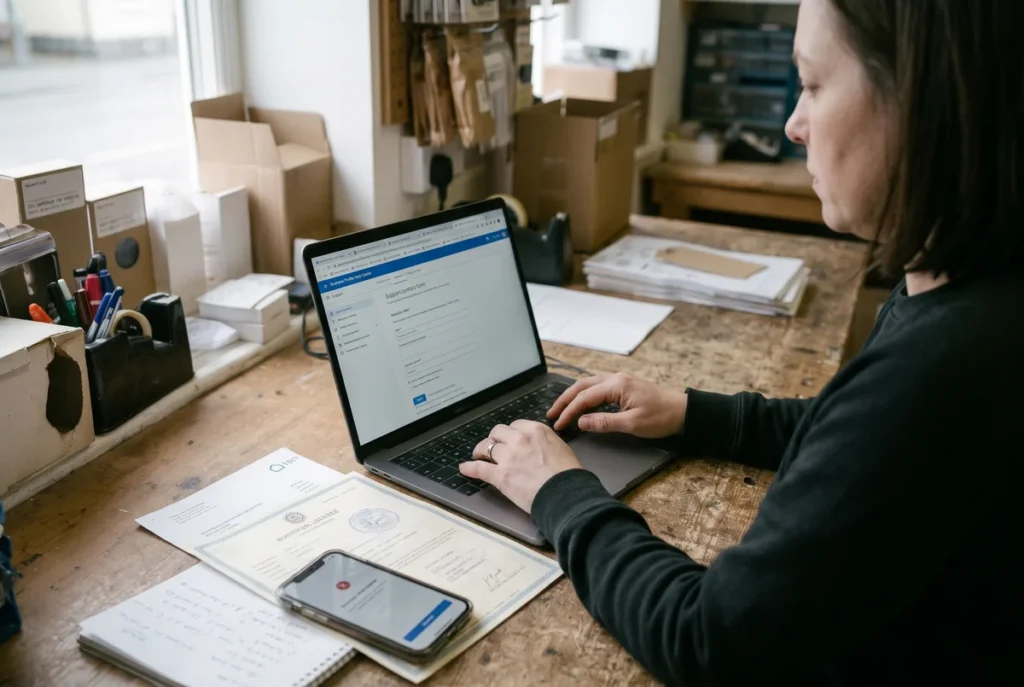
Contact Google support after you’ve fixed mismatches and tried every method your screen offers. Don’t wait weeks once you have. Follow this route to reach a person:
- Open the Help Center Form: Go to the Business Profile Help Center, select Contact us, and pick your business. Describe the problem briefly. If the form points you to a status tool, follow it to the Contact us link.
- Build a Paper Trail: Support moves faster with dates, error screenshots, and submitted documents in hand. Identify your profile by its exact business name and address. Compile a single document or email that lists: the date of each verification attempt, the method used, the result (pending, failed, or no method available), and a screenshot of each result screen. Attach any supporting documents you submitted. This lets the agent see your full history without asking you to repeat it.
- Track Your Case ID: Google gives you a case ID after you submit. Add that number to every reply, so each message links to your request. If a callback appears, enter your business phone number.
Google support typically replies within one to three business days, though complex cases may take longer. For extra advice, the Business Profile Help Community has experienced users who can point you toward fixes.
Ready to Get Your Google Business Verified? Take the Next Step
That pending screen doesn’t have to last forever. Most stalled requests trace back to mismatched details, weak proof, or a method Google never offered. Each one has a fix you can start today.
You now know how to check your status, retry the right way, and reach support with a clean record. In return, a verified profile lets you edit your listing and answer customers directly.
Don’t guess your way through another failed request. To start your next attempt with clean, matching details, contact the Click2Rank team for help.
Google Business Profile Verification FAQs: Five Quick Answers
Got a lingering question about your Google Business Profile? These five answers cover what owners ask next.
1. Does Google Business Profile Verification Cost Money?
No, verification is free. A caller who asks for payment to verify your Business Profile is almost certainly a scammer. Hang up and open your own account instead.
2. Can a P.O. Box or Virtual Office Pass Business Verification?
No, because Google’s guidelines don’t accept P.O. boxes or rented mailing addresses. The simplest solution is a physical address where your staff meets customers during business hours. A co-working office can qualify only with clear signage and your own staff on site.
3. Can Your Website Speed Up the Verification Process?
Sometimes. If you verify your website in Search Console, your Google Business Profile might get instant verification. Success varies by profile, so keep your other options open.
4. Can an Employee or Agency Verify a Profile for Clients?
Yes, as long as you manage or represent the business. The video verification step asks for that proof on camera, so the person filming sets your odds of success. Agencies may need an on-site employee to show staff-only areas for clients.
5. What If Someone Else Already Claimed Your Business Profile?
Ask for access to the Google Business Profile, and the current owner gets about three days to respond. If they don’t, you can verify ownership yourself. When no one responds, contact support for the quickest solution.