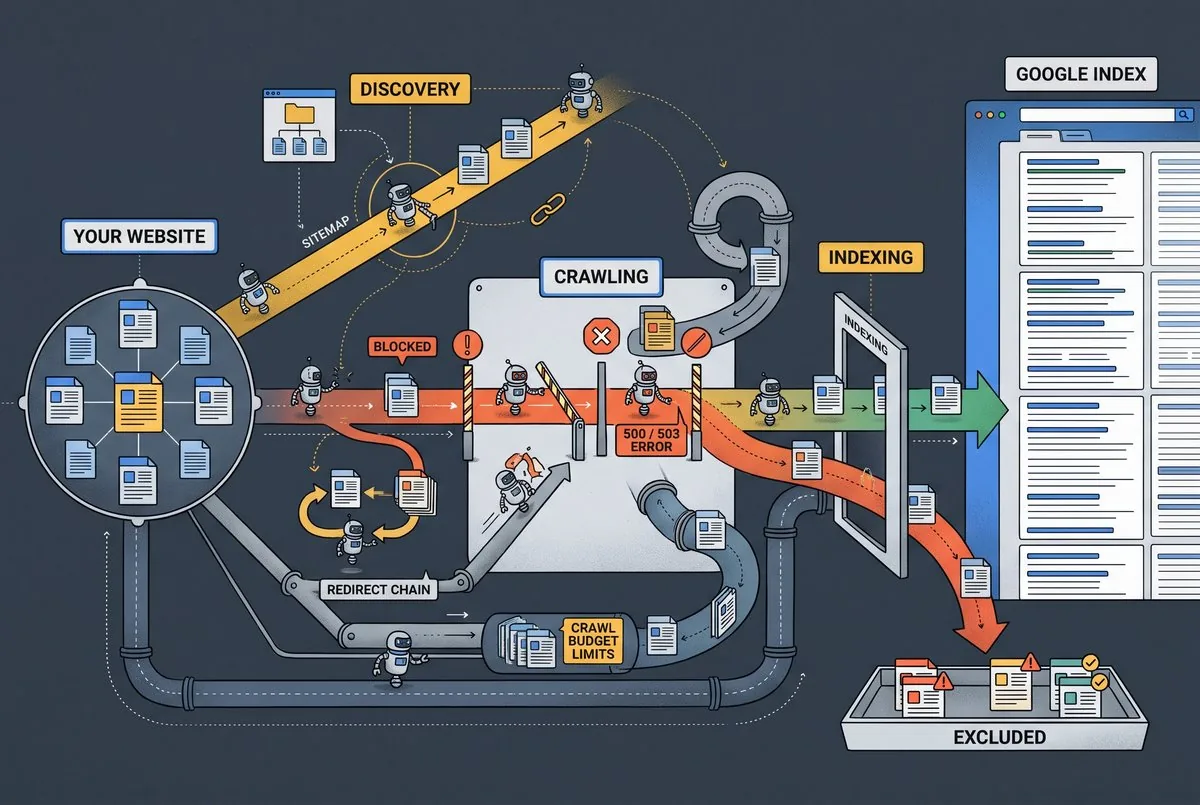
You built a page, hit publish, and it still won’t show up in Google. That’s one of the most common Google indexing issues website owners run into, and it rarely means your content is broken.
Here at Click2Rank, we’ve worked through hundreds of Search Console reports for clients across different industries, so we’ve seen nearly every reason a page gets skipped. If you’re staring at a confusing status report right now, don’t worry. This guide breaks down exactly what it means.
Together, we’ll walk through how Google finds and indexes pages, the most common reasons it doesn’t, and a checklist you can run whenever a page goes missing. You won’t need to touch a single line of code to follow along.
How Google Finds, Crawls, and Indexes a Page
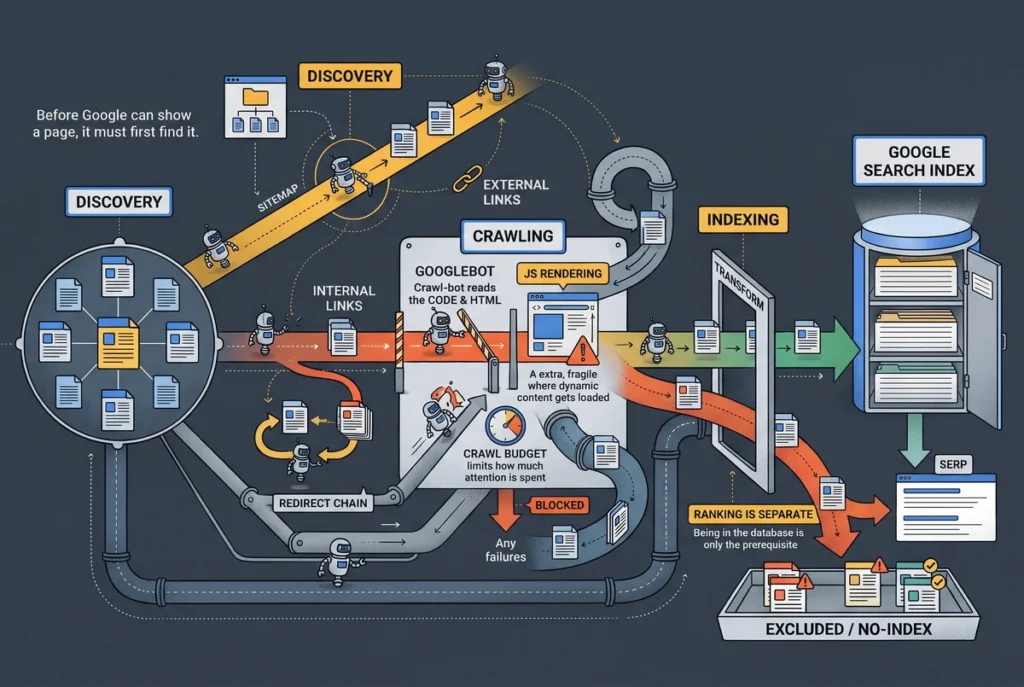
Google has to discover, crawl, and index a page in that exact order before it can ever show up in search results. Each stage depends on the one before it, so a problem early on blocks everything that follows.
Here’s how the process actually works.
Discovery
Google finds new pages through sitemaps, internal links, or external sites linking to your content. Search engine bots follow these paths the same way you’d follow signposts to a new street (though unlike you, they never stop to ask for directions).
A page with weak or no links pointing to it might sit undiscovered for months, a problem we’ll unpack when we get to site structure. Submitting a sitemap through Google Search Console speeds this up, but it doesn’t guarantee Google acts on it right away. So a submitted sitemap is just a starting point, rather than a shortcut.
Crawling
Once Google knows a page exists, Googlebot visits it and reads the content and code behind it. This step gets trickier with dynamic page requests. If content loads through JavaScript instead of plain HTML, Googlebot has to render the page first. That extra step can delay the crawl, and if rendering fails, Google may skip the page.
Beyond rendering, Google also limits how much time it spends on your site overall, which decides how often Googlebot comes back for another pass.
Indexing
If a page passes that check, Google stores it in its search index (the database search results get pulled from). Getting indexed doesn’t guarantee a ranking either. We’ve watched this cost sites their own best-performing URL, simply because Google decided a different one deserved the top spot.
Basically, being in the search index means Google can show the page. Earning a spot near the top is a separate challenge entirely.
Common Google Search Console Indexing Report Statuses
Open your page indexing report, and you’ll likely see a handful of unfamiliar status labels staring back at you. Each one tells you exactly why a page isn’t showing up, so learning them now saves you from guessing every time one appears.
| Status | What It Means |
| Discovered – currently not indexed | Google found the URL but hasn’t crawled it yet |
| Crawled – currently not indexed | Google crawled the page but chose not to index it |
| Excluded by noindex tag | A directive told Google to skip this page on purpose |
| Duplicate without user-selected canonical | Google found near-identical pages and picked one itself |
| Blocked by robots.txt | A rule stopped Googlebot from even visiting the page |
Some of these statuses point to a real problem worth fixing. Others simply reflect pages you never wanted indexed in the first place, like admin logins or filtered search results. The index coverage report groups everything by reason, so you can scan it and immediately tell which rows need action and which ones are working as planned.
However, one status tends to frustrate site owners more than any other.
Why “Discovered – Currently Not Indexed” Pages Get Stuck
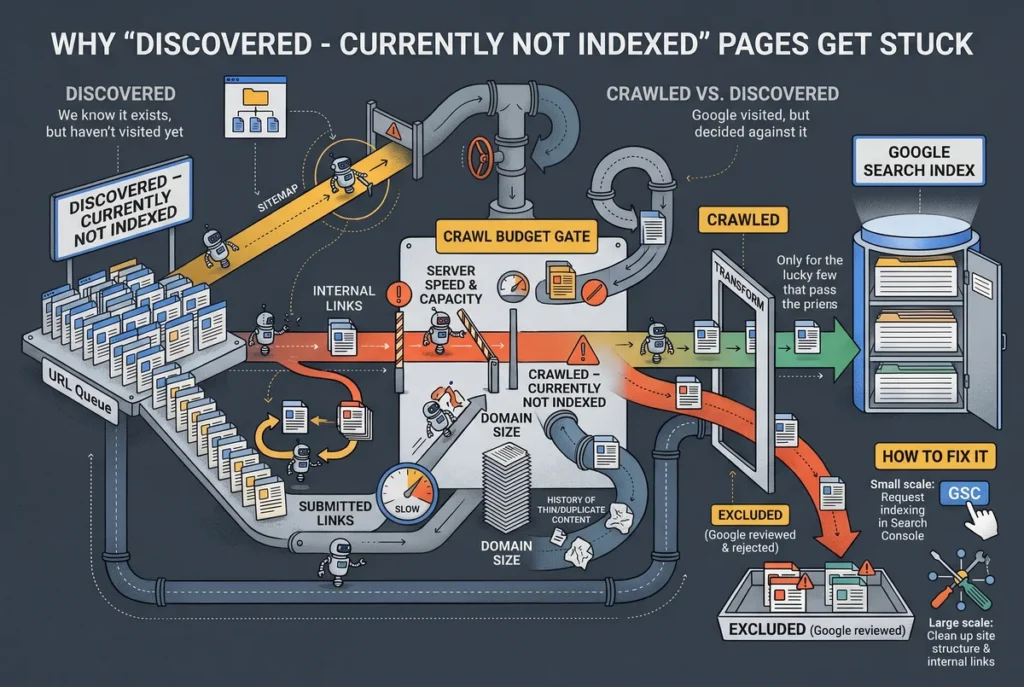
Frankly, “discovered – currently not indexed” just means Google found your URL through a sitemap or link, but hasn’t crawled it yet. And that delay almost always traces back to crawl budget.
Every site gets a set amount of Googlebot’s attention. From there, how fast your server responds and how many pages you’re asking Google to crawl at once decide who gets more of it (larger sites feel this first, smaller ones notice it last). A history of thin or duplicate content elsewhere on the site can push your crawl priority even lower. Google weighs your whole domain here, not just the one page in question.
This status also differs from “crawled – currently not indexed,” where Google already looked at the page and decided against it. Discovered just means Google is still waiting its turn. You can request indexing for a handful of affected pages through Search Console, but that only works at a small scale.
For a site with hundreds of stuck URLs, the real fix is cleaning up site structure and internal links, the two causes we’ll cover next.
How a Missing or Improper Canonical Tag Confuses Google
A proper canonical tag tells Google exactly which version of a page deserves a spot in its index. It does this by pointing to one specific canonical URL and telling Google to treat every other similar version as secondary. Without one, Google has to guess, and that guesswork can confuse search engines enough to pick a different canonical page than the one you intended.
This usually happens when two or more pages share similar or identical content. A product page and its filtered or sorted variant are a common example, since both show the same items with only the URL changing. When there’s no user-selected canonical, Google steps in and picks the duplicate page version it considers the preferred one.
And that guesswork does have consequences. We’ve watched this cost sites their own best-performing URL, because Google decided a different one deserved the top spot. That version then collects the clicks, the links, and the search rankings the original page should have earned.
Setting your own canonical removes that risk, since Google indexes the URL you actually want ranked instead of making that call itself.
How a Noindex Tag or Misconfigured Alternate Page Blocks Indexing
Believe it or not, catching a stray noindex tag early can be the difference between a page launching on time and vanishing from search for weeks. A noindex tag tells Google explicitly to leave a page out of search results, no guessing involved. Even a well-linked, well-written page disappears the moment that tag shows up.
This is where most of these tags end up by accident rather than on purpose.
- Noindex Left On After Launch: A developer often adds a sitewide noindex tag during testing, then forgets to remove it once the site goes live. The page can sit invisible for weeks until someone notices the missing traffic.
- Robots.txt Blocking Visibility: Sometimes a robots.txt rule blocks the page so Googlebot can’t even reach it to read the noindex tag sitting there. And since Google never visits, it never learns why the page is stuck.
- Hreflang Pointing Elsewhere: Mismatched hreflang tags on an alternate page can send Google to the wrong regional or language URL. This mix-up is common on sites running multiple country versions of the same page.
- Contradicting Canonical and Noindex Signals: A page can point its canonical at itself while a leftover noindex tag tells Google to skip it anyway. Google then receives two opposite instructions at once and has to pick one to believe.
A quick audit after any launch or redesign catches these directives early, which protect important pages you never meant to hide.
Server Errors, Redirects, and Slow Pages That Block Access
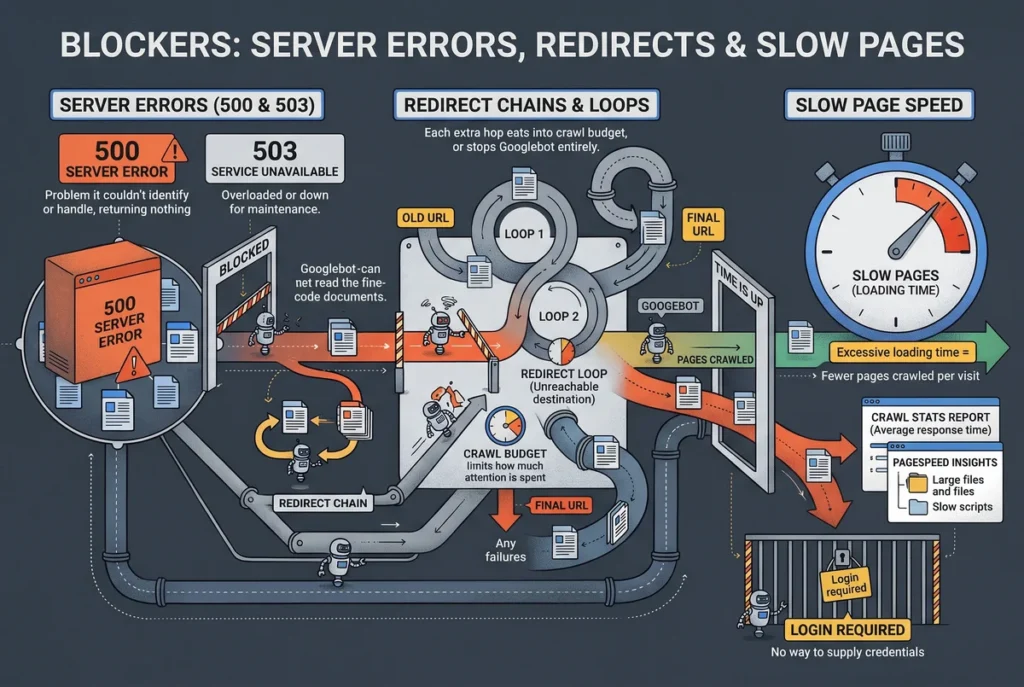
Directives aren’t the only way a page gets blocked. Something happening on your server can block Google just as easily as a setting you configured yourself. A server error during a crawl attempt stops Googlebot from reading the page at all, even if the content and code are perfectly fine.
Redirect chains cause a similar problem. Each extra hop between the old URL and the final destination eats into your crawl budget, and a loop can prevent Google from ever reaching the page it’s trying to find.
Server errors cause the same kind of access failure, but for a different reason. Instead of looping, the server fails outright and returns a specific error code:
- 500 Server Error: It hit a problem it couldn’t identify or handle, so it returned nothing.
- 503 Service Unavailable: It’s temporarily overloaded or down for maintenance, and it refuses the request until that clears.
If your site runs slow for Googlebot, that also counts against you. Excessive page loading time means Googlebot crawls fewer pages per visit, since it budgets time, not just requests.
You can see that cost directly in Search Console’s crawl stats report, which shows your server’s average response time. Google PageSpeed Insights can then help confirm whether large files or slow scripts are the root cause.
Access can break down in other ways too. Some crawl attempts fail because a server requires a login the user agent provided credentials for. Googlebot has no way to supply one, so it gets blocked the same way a wrong password would block you.
How Site Structure and Related Pages Affect Discoverability
Google can only index a page it can reach, and your site structure decides how easily it gets there.
Orphan pages with no internal links pointing to them are the clearest example. A page buried three or four clicks from your homepage, with nothing else linking to it, picks up far less link equity. A page sitting one click away earns much more by comparison. Poor internal linking spreads that same problem across dozens of pages at once.
Related pages cause a different kind of confusion. Tag archives, category pages, and near-duplicate listings can dilute which version Google treats as primary. That split sends link equity across versions that should just point to one.
This isn’t the same canonical issue covered earlier, since no tag is misconfigured here. It’s just too many similar pages competing for the same spot.
At the end of the day, fixing site structure usually means adding internal links from stronger pages to weaker ones rather than building anything new.
A General Diagnostic Checklist for Indexing Problems
Once you know the possible causes, the next step is working through them in a clear, repeatable order. Based on our experience, most indexing problems get solved faster when you check the obvious things first, before digging into anything technical.
Take a look at the order we recommend:
- Notice the Page Indexing Report First: Open Search Console and find which status category the affected pages fall under before assuming the worst.
- Rule Out Robots.txt and Noindex: Paste the URL into the URL Inspection tool, found in the search bar at the top of Search Console. It shows whether the page is blocked by robots.txt or carrying a noindex tag.
- Review Your Canonical Setup: A healthy setup points one URL at itself and every near-duplicate back to it, with no conflicting signals.
- Inspect Server Response and Speed: Notice your website’s Time to First Byte (TTFB) using Google PageSpeed Insights. According to Google’s own guidance, most websites should aim for a TTFB of 800 milliseconds or less. TTFB isn’t a Core Web Vital, but a slow response can delay page loading.
- Trace Your Internal Links: Open the Links report under Search Console’s left sidebar menu. It lists every page linking to the affected URL, or confirms none do.
- Spot-Check With the URL Inspection Tool: It handles one URL at a time, so it won’t scale across hundreds of affected pages.
- Request Indexing Only After Fixing the Cause: This triggers only a one-time recrawl. The same status returns the moment Google checks again and finds the cause untouched.
Skipping straight to the last step usually means repeating the whole list a week later, once the same status reappears.
When an Excluded URL Needs Your Attention
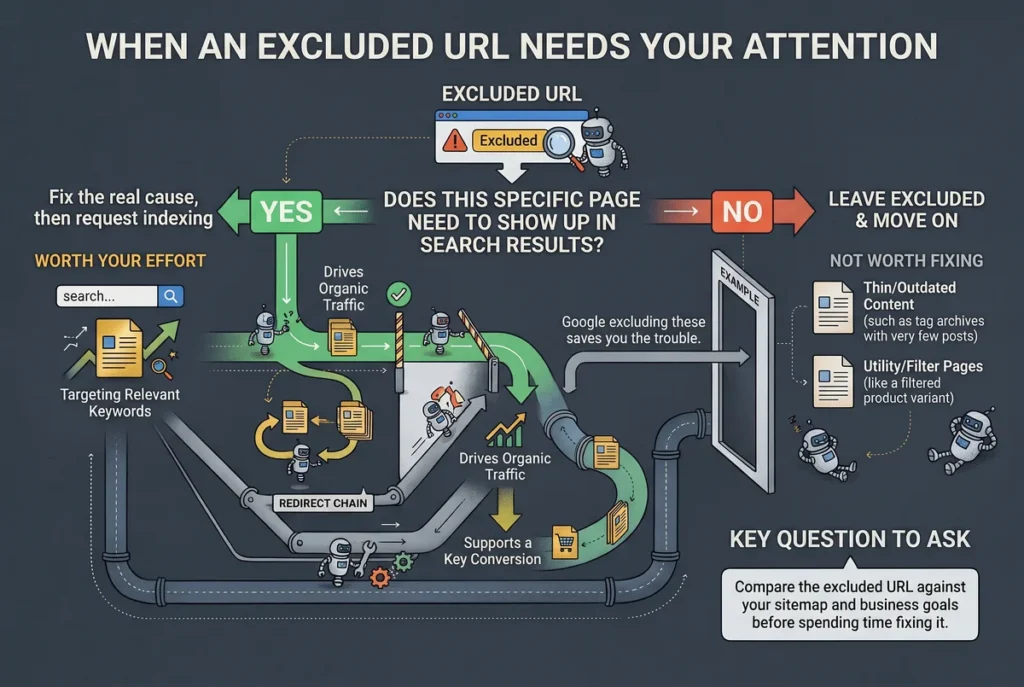
An excluded URL only needs action if it’s a page you actually want ranking. After all, not every status in your indexing report signals a mistake worth fixing.
Google often correctly leaves thin, duplicate, or outdated pages out of the index when they’re marked as excluded. A tag archive with three posts, or a page generated by your own site’s filter, rarely deserves a spot in Google’s search results anyway. Google excluding these pages on its own saves you the trouble.
Compare the excluded URL against your sitemap and business goals before spending time fixing it. If the page targets relevant keywords, drives organic traffic elsewhere, or supports a key conversion path, it’s worth the effort. If it’s a filtered variant nobody searches for directly, leave it alone and move on.
The question to ask is simple: does this specific page need to show up in search results, or not? If it does, fix the real cause first, then request indexing. If it doesn’t, leave it excluded and move on.
Solving Google Indexing Issues Starts With the Right Diagnosis
Most Google indexing issues trace back to a handful of causes, from crawl budget and canonical tags to noindex settings and weak site structure. Spotting the right one first saves you from chasing a problem that was never really there.
That’s exactly what Click2Rank works through for clients every week. If your indexing issues feel bigger than a quick fix, we can help you prioritize what needs attention first.
Frequently Asked Questions (FAQs)
Here are a few questions we hear often from site owners working through indexing problems.
How Long Does It Take To Fix Google Indexing Errors?
The timeline depends on the specific error and when Google next crawls the affected page. According to Google’s own guidance, crawling can take anywhere from a few days to a few weeks. Fixing the underlying cause doesn’t guarantee instant indexing afterward.
Can Low Quality Content Affect Indexing?
Yes, low quality content can affect indexing, though it’s just one factor among several. If a blog post or product listing adds little beyond what’s already out there, Google may choose not to index it at all.
Why Are Some Of My Website Pages Indexed And Others Aren’t?
Google doesn’t index every web page on a site. Some pages contain duplicate or thin content, while others run into technical problems that block them outright. The page indexing report helps you identify why Google hasn’t indexed certain pages.
Do Multiple URLs Pointing To The Same Content Cause Google Search Console Errors?
Not always. When multiple URLs or multiple pages carry the same or similar content, Google usually just picks one preferred version and treats the rest as duplicates or alternates, not errors. If Google chooses a different URL than you intended, use URL Inspection to check which canonical version it selected.
Can I Ask Google To Prioritize Indexing My Key Pages?
You can request indexing through the URL Inspection tool to inform Google a page is ready, but that doesn’t guarantee priority treatment for key pages over others. Google’s automated crawling systems, built on its own guidelines and algorithms, decide crawl order, and repeating the request won’t speed things up.
Does An Alternate Page With Proper Setup Still Risk Indexing Errors?
Usually not. An alternate page with proper canonical tag status just means Google recognized a different URL as the preferred version and indexed that one instead. If that choice matches what you wanted, there’s nothing to fix.
Can Slow Loading Pages Block Important Pages From Getting Indexed?
Slow server responses don’t automatically block important pages from indexing, but persistent delays can reduce Google’s crawl capacity, especially on larger sites. Improving server speed helps search bots work through your pages more efficiently.